NaNoWriMo 2015 is nearly upon us! Here's my plan, including posting my progress.
First, I should point out that I changed my novel. I have had an idea in my head for a couple of years now, for a sci-fi novel about answering Enrico Fermi's famous "Where is everybody?" question. A while ago I created a pretty detailed outline for it, then set it aside. I tried to resurrect it as a short story a few months ago, and decided to wait, and now I'm glad I did.
With that in mind, I went ahead and switched. And the outline for it is quite detailed, although still somewhat incomplete (there are a couple of parts with just chapter names, for example), so that will definitely help. Daily, I plan to spend the first 2 hours of my day writing, setting those aside for me to be neck-deep in Scrivener in full-screen mode. That may not be long enough, so I also plan to spend an hour before bed. We'll see how that goes.
The plan is to aim for 1,750 words/day, with a daily minimum of 1,667. Sundays will be "makeup" days; if there are any days during a week I was short, I'll aim to make up for it on Sunday.
I have my calendar ready (for a really nice one, check out Dave Seah's excellent NaNoWriMo 2015 calendar), and posted near my desk.
I will post daily word count updates to my NaNoWriMo profile and probably Twitter, with weekly updates to all my social media accounts, probably on Sundays. (That may change, depending on the integrations available through the website!)
I am nervous, but as ready as I can be, I think!
Saturday, October 31, 2015


Tuesday, October 27, 2015
The CloudAge™ Author: Social Media discussion
Another part of the wonder of the CloudAge™, especially for an author, is social media; that is, the Internet-connected apps and software ecosystems where people congregate to create, exchange, and/or consume information (my definition, and not necessarily comprehensive). An author in the present time has an opportunity to create a brand around themselves before even being published, and can leverage that brand later when communicating with agents or publishers. Indeed, many agents & publishers now require an existing social media presence for debut authors, because it demonstrates a willingness by the author to be fully present in marketing themselves and their work—which alleviates certain burdens of the agent or publication editor & their marketing departments. Here are some of my observations, and collected experience and advice, on how CloudAge™ Authors can leverage social media to their advantage. In a later blog, I will go over some specific marketing advice I've culled and collected over time; for now, I'm just going to go over some of these entities.
First, some limitations: there are dozens and dozens of social media networks and apps around. Since we don't literally have all day and night and all day and all night tomorrow to go over them all, and I am reasonably certain that I don't know them all, I'm going to focus on a few that will either:
First, some limitations: there are dozens and dozens of social media networks and apps around. Since we don't literally have all day and night and all day and all night tomorrow to go over them all, and I am reasonably certain that I don't know them all, I'm going to focus on a few that will either:
- have the most potential reach (that is, you will get the most eyeballs for your time); or,
- the most focused audience(s) (ones that target writers & readers in particular).
Next, let's talk about size. As of August 20151, Facebook was the largest social network in terms of active users, with nearly 1.5 Billion active users. The next four in descending order are the Chinese IM service QQ with 832 Million active users, WhatsApp with 800 Million, Facebook Messenger with 700 million, and QZone, the social network counterpart to QQ, with 668 Million. The next five after that are WeChat, Twitter, Skype, Google+, and Instagram.
With these sizes in mind, the stats are a little bit misleading. Although there are a lot of users on the QQ, QZone, and WeChat sites, they are primarily in China (all of them are properties of Tencent, a Chinese holding company). If you publish and distribute there now, then these will be good networks on which to market, but keep in mind that advertising is strongly regulated in China. I would certainly advise communicating with a marketing or PR firm with extensive experience in Chinese marketing, rather than trying to go it alone (at least at first)2. I also will not be terribly concerned with Facebook Messenger; although now it can be used without a Facebook account, it is still largely populated by users already counted in the Facebook count.
Leaving these four out, the six left over are Facebook, WhatsApp, Twitter, Skype, Google+, and Instagram.
Third, let's discuss "purpose" and "suitability for a particular use," as far as CloudAge™ Authors and social media are concerned. More to the point, what is a given social media's core function and how to best use it to your brand's advantage, as a CloudAge™ Author.
For all its various changes, upheavals, and acquisitions, Facebook remains largely a friend-network medium. That is, it is still primarily a way for individual people to stay in touch, and keep up, with other individual people. There are some business features, and Facebook is certainly trying to incorporate more ways for people to interact with paid advertising (and, in the process, largely alienate the businesses that use Facebook), but for all that, it's really just about individual people interacting with each other. Because of its sheer mass of active users, it is going to be essentially a requirement for an author to have a Facebook Page for their brand. I do not, however, advocate the use of Facebook as a primary marketing tool; instead, focus on making your Facebook page a replacement for the portal of days gone by. Today, it should be a gateway to your other marketing efforts. There are a couple of main reasons for my feeling on this. First, Facebook has made it nigh-on impossible to have any "organic" reach until you expand your Page Likes into the thousands—even then, they make it difficult to reach your audience in their News Feed—instead forcing Page owners to spend money advertising with questionable results (and metrics), as well as questionable reach3. Second, your best bet to grow your Facebook Page likes will be through the same word of mouth that will accompany your book promotion anyway. Instead of spending additional money to drive Page likes, spend it instead on other media which includes an option to "Like" your Facebook Page as well, and kill two birds with one stone. Put your Facebook Page URL everywhere you have your blog, website, Twitter handle, or other social media links.
This is not to say that you shouldn't have a Facebook Page; to the contrary, simply due to the enormous reach of Facebook, it is virtually required to have one. Instead, I recommend using the Facebook page as essentially an extended "about me" and a portal, and that most of your Facebook posts be links to other resources, such as your blog or website. Use the Facebook page to give Facebook users a place to find you, and then click on your blog posts to read your updates. Definitely use the "Shop now" button though; the "call to action" can drive potential sales straight to your Amazon, Barnes & Noble, or other website page where the Facebook user can immediately purchase your latest writing.
WhatsApp, along with Facebook Messenger (if you consider it separately) is an instant messaging service; think of it as a replacement for your phone's text messaging application. All three of them are direct-to-device communications; that is, you compose a message—from the phone's messaging app using SMS/MMS, or with the WhatsApp or Facebook Messenger app—and send it directly to the devices registered for the recipient(s). All of them support messaging lists (although, not all the same way, or well), enabling you to "blast" information to multiple recipients directly all at once. Unfortunately, this is often considered bad form, and will likely rapidly result in your brand being unfollowed.
Twitter has been referred to as a "microblog" service; while that might be one way to describe it, I have always seen it basically as Facebook Lite; basically all you have are status updates. Right now, those status updates are limited to 140 characters (including URLs and image links), so they must be very brief. What is great about Twitter is exactly that, though: short, descriptive entries, with images and links to more comprehensive information. In addition, it is an excellent place to find content you can "RT" (re-tweet), which is one way to gain respectability: when another author posts a blog you find useful, or an editor or agent posts a "call for submissions," retweeting them will get other people's attention. Don't underestimate the ability of a network of other authors and editors to get you noticed!
Skype is essentially a video-conferencing app; in many ways, it is a replacement for a telephone. One innovative use of Skype, however, is the creation of video (or audio) blog entries; if you are interviewed over Skype (and have obtained the necessary permissions, if any), record the interview—and do any post-production needed—then post it on your website or blog, and link to it using your other social media tools. This can be especially useful if you happen to land a large-impact interview, you can use the buzz generated from it for a long time4.
Google+ is Google's foray into the social media marketplace. For a while, it was a required element for anyone with any Google account—from gmail to youtube—to tie their account to Google+; Google has since relaxed this requirement significantly. The Google+ team also recently lost its head honcho, and seems to be languishing. It does come with a couple of extremely useful tools, however; Hangouts (which can be used without Google+, although it does require a Google Apps account in that case), and YouTube (which is not technically part of Google+, but since it is so useful I will definitely cover it here). Hangouts is a great tool for interacting with your fans or followers, as well as the media; you can schedule events where fans can ask questions and get instant feedback, and you can conduct multi-user video chats. Recording these (again, with permission when needed) and producing them for inclusion in your blog can reap multiple, long-reaching benefits. YouTube can be a very useful marketing tool for hosting your recorded videos, and you can create content specifically for YouTube as well—see, as an example, the Princess Rap Battles by Whitney Avalon, among others. A software company might post a series of "how-to" videos, showing how their software works; an author might post those video or audio interviews we discussed earlier, as well as short blurbs about their work(s).
Instagram is primarily a photo sharing network, now owned by Facebook. Since Instagram and Facebook share a lot of photo publishing connectivity, it makes sense to link your Facebook and Instagram accounts, and then post your images through Instagram to both sites simultaneously. While an author may not necessarily use this as a specific marketing tool often, you can certainly think of ways it might help build audience (organically, I might add!): you could post the photos of your trips to interviews, selfies at book signings with your fans, even just your goings-on about town. It can also be a great place to get feedback and/or exposure for your book by posting book covers.
One final site that deserves special mention for authors is Goodreads. Although it does not have nearly the user base as the others on this list, the users it does have are readers. The vast majority of people on Goodreads are book lovers, and that makes Goodreads a highly self-selected, targeted group for exactly what you do: write. There are also many authors on Goodreads, with whom you can connect and exchange information, tips, and spread goodwill.
Finally, let's consider that all of these social media platforms are two-way streets. It is not enough to merely sit and announce your own projects, but also to use the platforms to connect with other people. If your postings are all you tooting your own horn, eventually people will become inured to your sound and ignore it. Instead, use your platforms to announce as well as delight, inform, and also to help spread the reach of other people whom you find interesting. In a later blog post, I will discuss some specific strategies for overall social media marketing, as part of a general marketing plan, but for now remember that your fans will be much more likely to stick with you if you can not only write amazing books, but also inform them about the amazing works of other authors, as well as information they will find entertaining, useful, and enlightening.
Footnotes:
1: Statista, "Leading social networks worldwide as of August 2015, ranked by number of active users (in millions)", August 1st, 2015, http://www.statista.com/statistics/272014/global-social-networks-ranked-by-number-of-users/ (back)
2: Henry Fong, Forbes, "5 Things You Need To Know About Chinese Social Media", October 25th, 2012, http://www.forbes.com/sites/ciocentral/2012/10/25/5-things-you-need-to-know-about-chinese-social-media/ (although a blog entry aimed at software developers, the general advice is applicable to anyone interested in leveraging Chinese social media marketing) (back)
3: I have a Facebook Page for my Author self (see what I did there? ;), and I have also worked with startups helping manage their social media. In all cases, "legitimate" likes purchased in "Promote your Page" campaigns from Facebook's official tools resulted in a vast majority of Page likes who were almost certainly fake, despite having come through legitimate, narrowly targeted Facebook ads or like campaigns. As is explained in a YouTube video from Veritasium ( https://youtu.be/oVfHeWTKjag ), this actually makes the organic reach of a page worse, since Facebook distribution of posts to your network of Likes is dependent on the engagement the post gets from the random subset of profiles Facebook selects from the outset. If that random initial post doesn't get much engagement, the rest of your network never sees the post at all; if there is a large percentage of your Page 'likes' from these fake likes, then the engagement will be low at the outset, which will damage your reach significantly. Despite the constant complaints of businesses small and large, and Facebook's insistence they are combating it, absolutely nothing has changed in the past 18-20 months on this issue, as my latest test (from August of 2015) shows. It is due to this ongoing fake "like" issue, even for "legitimate" like promotions through Facebook itself that I strongly discourage anyone trying to run an Author brand from paying Facebook for likes or ads (and, definitely don't pay anyone but the most vetted social media promoters for them, either). For additional reference and information on the problem with Facebook Likes and Ads, see also these blogs (many of which reference the Veritasium video, but also other sources, as well as their own experiences in some cases):
With these sizes in mind, the stats are a little bit misleading. Although there are a lot of users on the QQ, QZone, and WeChat sites, they are primarily in China (all of them are properties of Tencent, a Chinese holding company). If you publish and distribute there now, then these will be good networks on which to market, but keep in mind that advertising is strongly regulated in China. I would certainly advise communicating with a marketing or PR firm with extensive experience in Chinese marketing, rather than trying to go it alone (at least at first)2. I also will not be terribly concerned with Facebook Messenger; although now it can be used without a Facebook account, it is still largely populated by users already counted in the Facebook count.
Leaving these four out, the six left over are Facebook, WhatsApp, Twitter, Skype, Google+, and Instagram.
Third, let's discuss "purpose" and "suitability for a particular use," as far as CloudAge™ Authors and social media are concerned. More to the point, what is a given social media's core function and how to best use it to your brand's advantage, as a CloudAge™ Author.
For all its various changes, upheavals, and acquisitions, Facebook remains largely a friend-network medium. That is, it is still primarily a way for individual people to stay in touch, and keep up, with other individual people. There are some business features, and Facebook is certainly trying to incorporate more ways for people to interact with paid advertising (and, in the process, largely alienate the businesses that use Facebook), but for all that, it's really just about individual people interacting with each other. Because of its sheer mass of active users, it is going to be essentially a requirement for an author to have a Facebook Page for their brand. I do not, however, advocate the use of Facebook as a primary marketing tool; instead, focus on making your Facebook page a replacement for the portal of days gone by. Today, it should be a gateway to your other marketing efforts. There are a couple of main reasons for my feeling on this. First, Facebook has made it nigh-on impossible to have any "organic" reach until you expand your Page Likes into the thousands—even then, they make it difficult to reach your audience in their News Feed—instead forcing Page owners to spend money advertising with questionable results (and metrics), as well as questionable reach3. Second, your best bet to grow your Facebook Page likes will be through the same word of mouth that will accompany your book promotion anyway. Instead of spending additional money to drive Page likes, spend it instead on other media which includes an option to "Like" your Facebook Page as well, and kill two birds with one stone. Put your Facebook Page URL everywhere you have your blog, website, Twitter handle, or other social media links.
This is not to say that you shouldn't have a Facebook Page; to the contrary, simply due to the enormous reach of Facebook, it is virtually required to have one. Instead, I recommend using the Facebook page as essentially an extended "about me" and a portal, and that most of your Facebook posts be links to other resources, such as your blog or website. Use the Facebook page to give Facebook users a place to find you, and then click on your blog posts to read your updates. Definitely use the "Shop now" button though; the "call to action" can drive potential sales straight to your Amazon, Barnes & Noble, or other website page where the Facebook user can immediately purchase your latest writing.
WhatsApp, along with Facebook Messenger (if you consider it separately) is an instant messaging service; think of it as a replacement for your phone's text messaging application. All three of them are direct-to-device communications; that is, you compose a message—from the phone's messaging app using SMS/MMS, or with the WhatsApp or Facebook Messenger app—and send it directly to the devices registered for the recipient(s). All of them support messaging lists (although, not all the same way, or well), enabling you to "blast" information to multiple recipients directly all at once. Unfortunately, this is often considered bad form, and will likely rapidly result in your brand being unfollowed.
Twitter has been referred to as a "microblog" service; while that might be one way to describe it, I have always seen it basically as Facebook Lite; basically all you have are status updates. Right now, those status updates are limited to 140 characters (including URLs and image links), so they must be very brief. What is great about Twitter is exactly that, though: short, descriptive entries, with images and links to more comprehensive information. In addition, it is an excellent place to find content you can "RT" (re-tweet), which is one way to gain respectability: when another author posts a blog you find useful, or an editor or agent posts a "call for submissions," retweeting them will get other people's attention. Don't underestimate the ability of a network of other authors and editors to get you noticed!
Skype is essentially a video-conferencing app; in many ways, it is a replacement for a telephone. One innovative use of Skype, however, is the creation of video (or audio) blog entries; if you are interviewed over Skype (and have obtained the necessary permissions, if any), record the interview—and do any post-production needed—then post it on your website or blog, and link to it using your other social media tools. This can be especially useful if you happen to land a large-impact interview, you can use the buzz generated from it for a long time4.
Google+ is Google's foray into the social media marketplace. For a while, it was a required element for anyone with any Google account—from gmail to youtube—to tie their account to Google+; Google has since relaxed this requirement significantly. The Google+ team also recently lost its head honcho, and seems to be languishing. It does come with a couple of extremely useful tools, however; Hangouts (which can be used without Google+, although it does require a Google Apps account in that case), and YouTube (which is not technically part of Google+, but since it is so useful I will definitely cover it here). Hangouts is a great tool for interacting with your fans or followers, as well as the media; you can schedule events where fans can ask questions and get instant feedback, and you can conduct multi-user video chats. Recording these (again, with permission when needed) and producing them for inclusion in your blog can reap multiple, long-reaching benefits. YouTube can be a very useful marketing tool for hosting your recorded videos, and you can create content specifically for YouTube as well—see, as an example, the Princess Rap Battles by Whitney Avalon, among others. A software company might post a series of "how-to" videos, showing how their software works; an author might post those video or audio interviews we discussed earlier, as well as short blurbs about their work(s).
Instagram is primarily a photo sharing network, now owned by Facebook. Since Instagram and Facebook share a lot of photo publishing connectivity, it makes sense to link your Facebook and Instagram accounts, and then post your images through Instagram to both sites simultaneously. While an author may not necessarily use this as a specific marketing tool often, you can certainly think of ways it might help build audience (organically, I might add!): you could post the photos of your trips to interviews, selfies at book signings with your fans, even just your goings-on about town. It can also be a great place to get feedback and/or exposure for your book by posting book covers.
One final site that deserves special mention for authors is Goodreads. Although it does not have nearly the user base as the others on this list, the users it does have are readers. The vast majority of people on Goodreads are book lovers, and that makes Goodreads a highly self-selected, targeted group for exactly what you do: write. There are also many authors on Goodreads, with whom you can connect and exchange information, tips, and spread goodwill.
Finally, let's consider that all of these social media platforms are two-way streets. It is not enough to merely sit and announce your own projects, but also to use the platforms to connect with other people. If your postings are all you tooting your own horn, eventually people will become inured to your sound and ignore it. Instead, use your platforms to announce as well as delight, inform, and also to help spread the reach of other people whom you find interesting. In a later blog post, I will discuss some specific strategies for overall social media marketing, as part of a general marketing plan, but for now remember that your fans will be much more likely to stick with you if you can not only write amazing books, but also inform them about the amazing works of other authors, as well as information they will find entertaining, useful, and enlightening.
Footnotes:
1: Statista, "Leading social networks worldwide as of August 2015, ranked by number of active users (in millions)", August 1st, 2015, http://www.statista.com/statistics/272014/global-social-networks-ranked-by-number-of-users/ (back)
2: Henry Fong, Forbes, "5 Things You Need To Know About Chinese Social Media", October 25th, 2012, http://www.forbes.com/sites/ciocentral/2012/10/25/5-things-you-need-to-know-about-chinese-social-media/ (although a blog entry aimed at software developers, the general advice is applicable to anyone interested in leveraging Chinese social media marketing) (back)
3: I have a Facebook Page for my Author self (see what I did there? ;), and I have also worked with startups helping manage their social media. In all cases, "legitimate" likes purchased in "Promote your Page" campaigns from Facebook's official tools resulted in a vast majority of Page likes who were almost certainly fake, despite having come through legitimate, narrowly targeted Facebook ads or like campaigns. As is explained in a YouTube video from Veritasium ( https://youtu.be/oVfHeWTKjag ), this actually makes the organic reach of a page worse, since Facebook distribution of posts to your network of Likes is dependent on the engagement the post gets from the random subset of profiles Facebook selects from the outset. If that random initial post doesn't get much engagement, the rest of your network never sees the post at all; if there is a large percentage of your Page 'likes' from these fake likes, then the engagement will be low at the outset, which will damage your reach significantly. Despite the constant complaints of businesses small and large, and Facebook's insistence they are combating it, absolutely nothing has changed in the past 18-20 months on this issue, as my latest test (from August of 2015) shows. It is due to this ongoing fake "like" issue, even for "legitimate" like promotions through Facebook itself that I strongly discourage anyone trying to run an Author brand from paying Facebook for likes or ads (and, definitely don't pay anyone but the most vetted social media promoters for them, either). For additional reference and information on the problem with Facebook Likes and Ads, see also these blogs (many of which reference the Veritasium video, but also other sources, as well as their own experiences in some cases):
- African-American Literature Book Club, "Serious Problems with Facebook Promotion", October 11th, 2015, http://aalbc.com/blog/index.php/2015/10/11/problems-facebook-promotion/
- Jim Edwards, Business Insider, "Facebook Advertisers Complain Of A Wave Of Fake Likes Rendering Their Pages Useless", February 11th, 2014, http://www.businessinsider.com/facebook-advertising-fake-likes-2014-2
- Jennifer Sleg, Search Engine Watch, "Facebook Ad Fraud: How Can Advertisers Combat Paid Likes?", February 19th, 2014, http://searchenginewatch.com/sew/news/2329878/facebook-ad-fraud-how-can-advertisers-combat-paid-likes
(back)
4: As discussed in Guerrilla Marketing, the savvy guerrilla marketer inside any author will get big bang for small bucks, when re-using certain content. In the book, the author describes re-using a one-time ad in popular magazines (Time, for example), putting it on a great big posterboard inside the front office with the blurb "as seen in Time," and reaping the rewards from that for as long as possible. This, it seems to me, would certainly apply to interviews via Skype or other video chat apps (Hangouts, for example) as well. (back)
4: As discussed in Guerrilla Marketing, the savvy guerrilla marketer inside any author will get big bang for small bucks, when re-using certain content. In the book, the author describes re-using a one-time ad in popular magazines (Time, for example), putting it on a great big posterboard inside the front office with the blurb "as seen in Time," and reaping the rewards from that for as long as possible. This, it seems to me, would certainly apply to interviews via Skype or other video chat apps (Hangouts, for example) as well. (back)
Friday, October 23, 2015
NaNoWriMo 2015 prep details
Since there are really a lot of outstanding suggestions on how to prep for NaNoWriMo—including their own outstanding prep page—I thought I'd just share a quick note about my own personal prep work for this year (then, next year, I'll post a similar one in earlier October, and do a "lessons learned" followup).
First, is the software side: since I have my MacBook Air, I don't do a lot of writing on my iPad anymore—that will likely change when Scrivener for iPad is finally released—so I just set up Scrivener for all local editing (i.e., no Simplenote or External Folder Sync setup). I did create the Project file in a subfolder in my Dropbox folder. That way, all changes are synced up to Dropbox auto-magically, and if my MBA were to take a dump or get stolen I could still recover my files.
 In addition, since it's not often a good idea to keep all of your eggs in one CloudAge™ Basket (that is, what happens if Dropbox gets cracked? Or if their internal controls are a little lax and their CTO got fired and unleashed a WormOfDoom™ on their server farms? Or Aliens invade from Pentax V? What about the Aliens, man?! ... it will help if you hear Jeff Bridges' voice as Flynn from the original Tron, here), I also whipped up a short Automator application that will copy my NaNoWriMo project from my Dropbox to a backup folder in my Box account. What I did here was open Automator (in the Applications folder, usually), dragged the Files & Folders->Get Specified Finder Items action and clicked "Add" to put my NaNoWriMo file as the input, then dragged the Copy Finder Items action and selected the backup folder location (as noted, on my Box drive). You could substitute a local external drive, a burn folder, or a different service of course; in addition, it would be fairly straightforward to chain another action together, to make multiple backups every time. Since I have a pretty robust backup strategy already in place, I don't necessarily bother with the most paranoid parts of my mind. If you're not comfortable with just one backup, however, modifying this to back up to multiple locations should be pretty easy.
 Now, the Scrivener project itself. First, I opted for a "Fiction->Novel (with Parts)" template. When I am writing a fiction piece, I usually choose this as the base because of how I organize—many of you won't do it this way, and that's okay, just know that my brain is weird and this is how I roll. This format makes it easy for me to organize initially.
 To start with, I generally begin with a "LOCK" analysis (straight from Write Great Fiction: Plot & Structure by James Scott Bell), and I put each of the major elements Lead, Objective (1), Confrontation (1), Obj(2), Confront(2) etc. in as a "Part" (a.k.a, Folder) at the main level underneath "Manuscript" on the corkboard. I then rename those folders to something more descriptive, and use the heck out of the corkboard's note feature to give a brief description of what should happen inside this folder. Inside them, I put "Chapters", which I also give descriptive names and notes (these example Chapters don't have descriptive names, this is just a sample image). From there I add scenes to get started, and write the scenes as I go. Sometimes, I find I need additional items—maybe there are multiple Confrontations—and I can just drop them right in, add chapters & scenes ad hoc, and keep on keeping on. As I go along, I modify the structure based on how the story develops, adding or deleting things as needed.
Second, the mental side: I found a free online Nov 2015 month I could fit on a page, and made a Word Count calendar and printed it out. It hangs up on the wall next to my work space in my office, and I have printed on it how many total words should be written by each day of the month. Every day, before I shut down my computer and get ready to sleep, I will write down the number of words written that day, as well as the overall word count, and can see at a glance every second I'm in the office how I'm doing. My closest friends and family are aware not to bother me while I'm writing, and in particular that I need to crank during November, so that will help as well. There are still a few days left, so I will probably tweak the structure of the novel and work on character and setting background, but I think at this point I'm doing alright for prep!
So, for NaNoWriMo 2015, I have pre-organized the basic plot outline for my novel with Parts, Chapters, and Scenes. Now, all I have to do is wake up sometime on 01 NOV 2015 and start writing the heck out of the Next Great American Thriller Novel™.
First, is the software side: since I have my MacBook Air, I don't do a lot of writing on my iPad anymore—that will likely change when Scrivener for iPad is finally released—so I just set up Scrivener for all local editing (i.e., no Simplenote or External Folder Sync setup). I did create the Project file in a subfolder in my Dropbox folder. That way, all changes are synced up to Dropbox auto-magically, and if my MBA were to take a dump or get stolen I could still recover my files.
 In addition, since it's not often a good idea to keep all of your eggs in one CloudAge™ Basket (that is, what happens if Dropbox gets cracked? Or if their internal controls are a little lax and their CTO got fired and unleashed a WormOfDoom™ on their server farms? Or Aliens invade from Pentax V? What about the Aliens, man?! ... it will help if you hear Jeff Bridges' voice as Flynn from the original Tron, here), I also whipped up a short Automator application that will copy my NaNoWriMo project from my Dropbox to a backup folder in my Box account. What I did here was open Automator (in the Applications folder, usually), dragged the Files & Folders->Get Specified Finder Items action and clicked "Add" to put my NaNoWriMo file as the input, then dragged the Copy Finder Items action and selected the backup folder location (as noted, on my Box drive). You could substitute a local external drive, a burn folder, or a different service of course; in addition, it would be fairly straightforward to chain another action together, to make multiple backups every time. Since I have a pretty robust backup strategy already in place, I don't necessarily bother with the most paranoid parts of my mind. If you're not comfortable with just one backup, however, modifying this to back up to multiple locations should be pretty easy.
 Now, the Scrivener project itself. First, I opted for a "Fiction->Novel (with Parts)" template. When I am writing a fiction piece, I usually choose this as the base because of how I organize—many of you won't do it this way, and that's okay, just know that my brain is weird and this is how I roll. This format makes it easy for me to organize initially.
 To start with, I generally begin with a "LOCK" analysis (straight from Write Great Fiction: Plot & Structure by James Scott Bell), and I put each of the major elements Lead, Objective (1), Confrontation (1), Obj(2), Confront(2) etc. in as a "Part" (a.k.a, Folder) at the main level underneath "Manuscript" on the corkboard. I then rename those folders to something more descriptive, and use the heck out of the corkboard's note feature to give a brief description of what should happen inside this folder. Inside them, I put "Chapters", which I also give descriptive names and notes (these example Chapters don't have descriptive names, this is just a sample image). From there I add scenes to get started, and write the scenes as I go. Sometimes, I find I need additional items—maybe there are multiple Confrontations—and I can just drop them right in, add chapters & scenes ad hoc, and keep on keeping on. As I go along, I modify the structure based on how the story develops, adding or deleting things as needed.
Second, the mental side: I found a free online Nov 2015 month I could fit on a page, and made a Word Count calendar and printed it out. It hangs up on the wall next to my work space in my office, and I have printed on it how many total words should be written by each day of the month. Every day, before I shut down my computer and get ready to sleep, I will write down the number of words written that day, as well as the overall word count, and can see at a glance every second I'm in the office how I'm doing. My closest friends and family are aware not to bother me while I'm writing, and in particular that I need to crank during November, so that will help as well. There are still a few days left, so I will probably tweak the structure of the novel and work on character and setting background, but I think at this point I'm doing alright for prep!
So, for NaNoWriMo 2015, I have pre-organized the basic plot outline for my novel with Parts, Chapters, and Scenes. Now, all I have to do is wake up sometime on 01 NOV 2015 and start writing the heck out of the Next Great American Thriller Novel™.
Thursday, October 22, 2015
NaNoWriMo 2015
I'm getting ready for NaNoWriMo 2015, and thought I'd share a few thoughts about my prep as it gets closer.
First, the book: I started with a couple of different ideas, but last night had one of the in-color, extremely vivid dreams that my sleep is heir to—many of my dreams are movie-quality, it's kinda cool!—and completely changed gears. Instead of the sci-fi world-building novel I originally envisioned (without much real background, to speak of), I'll be working on a thriller/suspense novel. I don't have a title for it yet, but here's the back-cover blurb I came up with:
Steven Johnson is a police detective, and has seen some pretty bizarre things in his time on the force. He never imagined the mesmerizing woman he met at Story's Restaurant and Bar would lead him to the strangest case of his life. Why are there jail cells in the walk-up apartment she seems to call "home"? Why is she so afraid of the other person who seems to live there?
Yeah, it needs work, but that's just the first brush of the plot! So anyway, it literally came to me in a dream, and we'll see how far it goes.
Second, the work: To write a 50,000 word novel in 30 days takes—let's see, drop the remainder, carry the one—an average of one thousand six hundred sixty-six and two-thirds words every day of the month. If that seems like a lot, it does seems a little much for every day writing; most writing advice I see tells a budding writer to aim for 250 or 500 words/day as a goal. Having said that, 500 words is really not that much, being able to sit down three times a day and write 500 words each time will get me very close to the daily goal, so that's my goal: 500 words per sitting session, sitting at least three times a day just to write.
Third (and finally), other goals: I am almost certainly not blogging my daily progress (I am not the world's best daily blogger in any event!), but I aim to post occasional updates, and a weekly progress report.
Scrivener has already been primed, the project is ready and project targets have been set. It's almost go-time!
First, the book: I started with a couple of different ideas, but last night had one of the in-color, extremely vivid dreams that my sleep is heir to—many of my dreams are movie-quality, it's kinda cool!—and completely changed gears. Instead of the sci-fi world-building novel I originally envisioned (without much real background, to speak of), I'll be working on a thriller/suspense novel. I don't have a title for it yet, but here's the back-cover blurb I came up with:
Steven Johnson is a police detective, and has seen some pretty bizarre things in his time on the force. He never imagined the mesmerizing woman he met at Story's Restaurant and Bar would lead him to the strangest case of his life. Why are there jail cells in the walk-up apartment she seems to call "home"? Why is she so afraid of the other person who seems to live there?
Yeah, it needs work, but that's just the first brush of the plot! So anyway, it literally came to me in a dream, and we'll see how far it goes.
Second, the work: To write a 50,000 word novel in 30 days takes—let's see, drop the remainder, carry the one—an average of one thousand six hundred sixty-six and two-thirds words every day of the month. If that seems like a lot, it does seems a little much for every day writing; most writing advice I see tells a budding writer to aim for 250 or 500 words/day as a goal. Having said that, 500 words is really not that much, being able to sit down three times a day and write 500 words each time will get me very close to the daily goal, so that's my goal: 500 words per sitting session, sitting at least three times a day just to write.
Third (and finally), other goals: I am almost certainly not blogging my daily progress (I am not the world's best daily blogger in any event!), but I aim to post occasional updates, and a weekly progress report.
Scrivener has already been primed, the project is ready and project targets have been set. It's almost go-time!
Sunday, September 13, 2015
This CloudAge™ Author's submission tracking
As I discussed in my last post, one of the tools I use in my own work is the Customer Relationship Management (CRM) tool Insightly. My basic operating assumptions are: I need a tool to keep track of the agencies and publishers to whom I submit queries or proposals; I need a tool to help keep track of mailing list subscribers and those who show interest in being kept abreast of appearances or other media events; and, I need a tool to help keep track of my conversations, agreements, events, social media, and other obligations. A combination of packages could work, but I have found that Insightly has features that make it easy to use one tool for all of these purposes*. Some of these tools include:
- Leads & Lead tracking (useful for submissions, as we'll shortly see)
- Mailing list management
- Contact/Customer management
- Gmail and Google Calendar integration (calendar integration requires a paid subscription)
- Mobile Apps (iOS and Android apps both available)
So for a CloudAge™ Author like me, having access to my calendar events and submission status "Anywhere, Anywhen"™ is a huge advantage, and enables me to work out my schedule and plan my time no matter what's going on. I can also keep track of how many rejections I've gotten so far (yes it's sad but that's reality!), where I still have submissions pending, and so forth.
Really, at its most basic, the idea of CRM software is to enable an entity to keep in touch with their contacts. As an author in the present time, those relationships are crucial to success—whether you intend to self-publish forever, want to try traditional publishing, or to publish using some hybrid between those two. Your mailing list subscribers, lecture attendees, or blog readers are your audience, and maintaining an ongoing relationship with them is critical to your efforts. Publishers and agents will be ecstatic to see an author who is willing to reach out themselves to build an audience, and your readers will feel better connected to your work. This benefits all parties.
With that said, let me walk you through my own setup, so hopefully that will spark ideas for you about how to best manage your own situation. I will show you how I set up my Insightly to track submissions. I make only one background assumption: that you have already signed up for an Insightly account.
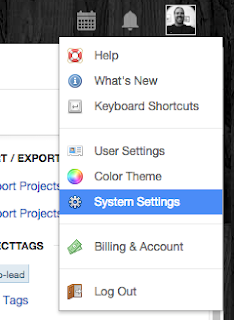 First, there are a couple of settings which need to be changed or added. Once logged in, I head to the System Settings.

There, I enable Lead Management and add a few custom fields to the Leads module.

The way I look at submissions, they are essentially a Qualifying activity for selling my writing project. Agents, publishers, and/or whatever other organizations to whom I submit queries or proposals are, in essence, Leads for my Author brand. The process of sending the submission is the qualification process for those Leads. With that in mind, I need to keep track of a few pieces of information about Leads that I don't need for a Contact—which would be, say, a blog reader, or a subscriber to my mailing list—like the date the submission was sent, the kind of submission it was, and whether that Lead accepts simultaneous submissions.
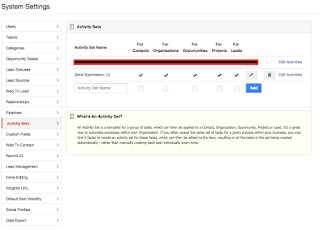 After setting up my custom fields, I create an Activity Set for submissions—make sure to check the checkboxes for all options—and then define the individual activities that make up the set.
 An activity set is a group of to-dos, events, emails, or other actions that I want to take for each step of the submission process, which I loosely define as: sending submission, marking Lead, follow-up.

I set the reminders for these activities, and a few other parameters as shown, and then go back to the Leads module.
 I create a new Lead with the information I have available, from whatever research method I used to discover it. I also include as much information as I can to fill out my custom fields, and then save the Lead.

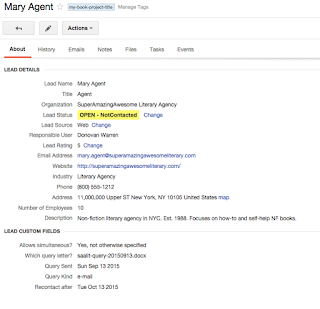 Once saved, I click on the Lead and do two additional things: first, I apply a tag to the Lead, which ties it to the writing project I'm working on.

Second, I add an activity set to the Lead, which auto-adds the tasks I already created. I set the start date to the day before I want to send the query, and the end date to the date after their "Recontact by" date, and click "Add Activity Set to Lead." The tasks I earlier defined for the Activity Set are added automatically to the Lead, with reminders!


 I can go to the calendar in Insightly and see the tasks assigned to me. With the iOS (or Android) versions of the Insightly app, I can receive notifications on those devices about my tasks (with a paid Insightly subscription, it is possible to sync the Insightly calendar to Google Calendar or Exchange, as well).

Now, whenever I am ready to submit a query letter, book proposal, or what have you, I just create a Lead for the Agency or Publisher, attach the appropriate Tag, Add the Activity Set to the newly created Lead, and let my devices remind me when it is time to send. Easy-peasy! Okay, yes… there is a little bit of setup, and a little bit of preliminary work, but it's really no harder IMO than setting up a spreadsheet with the same information, and I have the advantage of automatic reminders for both the initial submission and later follow-up.
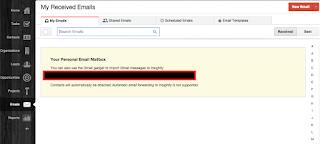 One other major advantage to using Insightly is the Personal Email Mailbox: when you create an Insightly account, a personal email address is created; by sending, forwarding, or sending a cc/bcc to this email, it will appear in your Emails tab, and emails sent here can be assigned to Leads, Contacts, Organizations, Projects or Opportunities in Insightly. By remembering to cc/bcc your Insightly Personal Email Mailbox address for all mail you send, and also forwarding any replies you receive to that address, you can keep a complete list of all email communications which are related to a submission. Some other CRM software also offers this or a similar feature. In addition to the emails, there are also tabs under the Leads (as well as Contacts) for attaching files; these can be attached by uploading, or by linking to Dropbox, Box, OneDrive, or Google Drive files.
So that's how I set up my Insightly CRM to help me keep track of my submissions. What tools do you use, and how do you stay on target? Comment below!
--
*: just to be clear, I am not affiliated with Insightly and they don't pay me to recommend their product. I have worked with many CRMs over the years, and have found that Insightly fits me the best. It is free at the most basic level, while many others are not; some that are include 1crm (on-site edition can be installed and used for free up to 3 users), Zoho, CapsuleCRM, and others.
With that said, let me walk you through my own setup, so hopefully that will spark ideas for you about how to best manage your own situation. I will show you how I set up my Insightly to track submissions. I make only one background assumption: that you have already signed up for an Insightly account.
 First, there are a couple of settings which need to be changed or added. Once logged in, I head to the System Settings.
There, I enable Lead Management and add a few custom fields to the Leads module.

The way I look at submissions, they are essentially a Qualifying activity for selling my writing project. Agents, publishers, and/or whatever other organizations to whom I submit queries or proposals are, in essence, Leads for my Author brand. The process of sending the submission is the qualification process for those Leads. With that in mind, I need to keep track of a few pieces of information about Leads that I don't need for a Contact—which would be, say, a blog reader, or a subscriber to my mailing list—like the date the submission was sent, the kind of submission it was, and whether that Lead accepts simultaneous submissions.
 After setting up my custom fields, I create an Activity Set for submissions—make sure to check the checkboxes for all options—and then define the individual activities that make up the set.

I set the reminders for these activities, and a few other parameters as shown, and then go back to the Leads module.


 Once saved, I click on the Lead and do two additional things: first, I apply a tag to the Lead, which ties it to the writing project I'm working on.
Second, I add an activity set to the Lead, which auto-adds the tasks I already created. I set the start date to the day before I want to send the query, and the end date to the date after their "Recontact by" date, and click "Add Activity Set to Lead." The tasks I earlier defined for the Activity Set are added automatically to the Lead, with reminders!


Now, whenever I am ready to submit a query letter, book proposal, or what have you, I just create a Lead for the Agency or Publisher, attach the appropriate Tag, Add the Activity Set to the newly created Lead, and let my devices remind me when it is time to send. Easy-peasy! Okay, yes… there is a little bit of setup, and a little bit of preliminary work, but it's really no harder IMO than setting up a spreadsheet with the same information, and I have the advantage of automatic reminders for both the initial submission and later follow-up.
 One other major advantage to using Insightly is the Personal Email Mailbox: when you create an Insightly account, a personal email address is created; by sending, forwarding, or sending a cc/bcc to this email, it will appear in your Emails tab, and emails sent here can be assigned to Leads, Contacts, Organizations, Projects or Opportunities in Insightly. By remembering to cc/bcc your Insightly Personal Email Mailbox address for all mail you send, and also forwarding any replies you receive to that address, you can keep a complete list of all email communications which are related to a submission. Some other CRM software also offers this or a similar feature. In addition to the emails, there are also tabs under the Leads (as well as Contacts) for attaching files; these can be attached by uploading, or by linking to Dropbox, Box, OneDrive, or Google Drive files.
So that's how I set up my Insightly CRM to help me keep track of my submissions. What tools do you use, and how do you stay on target? Comment below!
--
*: just to be clear, I am not affiliated with Insightly and they don't pay me to recommend their product. I have worked with many CRMs over the years, and have found that Insightly fits me the best. It is free at the most basic level, while many others are not; some that are include 1crm (on-site edition can be installed and used for free up to 3 users), Zoho, CapsuleCRM, and others.
Wednesday, September 2, 2015
The CloudAge™ Author: Tracking Submissions
Ah, (some of) the business end of being a CloudAge™ Author, and wanting to "Write Anywhere, Anywhen™": the publishing! While there are a lot of options now, for self-publishing—see my chap book of poetry, Hooray for Pain!, on Kindle Direct Publishing, for example—many authors are probably still interested in getting published through more traditional routes, at least once.
There are a lot of aspects of the business end to attend to, whether you intend to publish through traditional means, or use kdp, CreateSpace, and/or other Artisanal Publishing (thanks to Guy Kawasaki for the term!) routes. An author is often expected to maintain a social media presence, even if they are not publishing themselves—I see a lot of requirements in current agent submission guidelines to include things like their number of blog hits, facebook likes, twitter followers, or mailing list subscribers (or all, plus some!). For the author submitting to agents or publishers, there is also the Herculean task of creating query letters and/or proposals, submitting them, and keeping track of their status. There are marketing questions: how? when? where?—and answering these questions can require its own book of tasks.

With that in mind, I'm going to be your pathfinder (after a fashion)—starting with query or proposal submissions. Today, we're going to waft through the brume of options for keeping track of the query letters, book proposals, and agents or publishers who receive them. We'll look at some thing you can do as a CloudAge™ Author to help maximize your time, and help keep things from falling through the cracks. In another post, I'll go over some tools to keep on top of your social media, and after that some ways to manage your myriad marketing responsibilities.
Submission tracking: first, let's define some terms. What I mean by "submission" can be anything from a query letter to a book proposal to a draft of a manuscript. By "tracking," I mean keeping a record of all of the steps of a submission, from initial mailing to result, and on to proposal/drafts & (hopefully) eventual contract.
Next, let's talk about what things really must be tracked, and what things I recommend you also track. When you submit, at a minimum, track:
Also, finally, there are manual, non-electronic ways to do this, as well. I assume that anyone reading this blog is interested in technological solutions to these problems, and so I will focus on those.
When I say "which submission," there are a couple of things to think about. First, what kind of submission was it? Was it a query letter? Perhaps a non-fiction book proposal? Did you send the first draft of a manuscript? That information should be included as part of your submission tracking.
Second, which actual file did you send—electronically or otherwise—and where is it on your computer or cloud service? That is, if you printed and posted a physical query letter with a SASE for reply, not only can it be helpful to track that it was a query letter, but also to put the filename of the document you printed out. Later, when you get a positive response, you can look up the file you used, and learn more about successful query letters. In addition, by keeping track of which file you sent to which agency or publisher, you can help avoid the problem of double-sending—if there's a filename, they've already been sent a submission—or cross-sending the wrong submission.
Finally, it is important to stay on top of the dates, both of submission and the review timeline. This is one area where technology solutions can be very handy: once you've submitted and made your entry, you can have the computer or tablet or smart phone set a reminder for you to follow up on the submission. If the agency says "6-8 weeks," then in about 9 weeks set a reminder (or, your tool may enable you to set one automatically!), and in that reminder link back to your tracking tool. That way you have at your fingers all of the information you need to remind yourself what you sent, when, and why.
There are a few different technological ways to keep track of the submissions you make, regardless of kind or destination. First, and probably the oldest of these, is the old-school spreadsheet. The basic format here, is that you open Excel, or Numbers, or Sheets, or whatever else you might have around (VisiCalc or 1-2-3, anyone? Anyone? No?), make columns for the variety of fields you wish to track, and enter submissions as you make them. Some of these tools are free, others are not. Sheets, as part of Google Docs, is a free spreadsheet, and is available on the web and via Android or iOS device. If you have purchased a new Mac in the last couple of years, you can download iWork's Numbers for free to your computer. The iPad version is free to any iOS 8 device sold after 01 SEP 2013, upon initial activation, or is $9.99 otherwise. Excel can be downloaded for free to the iPad (to create new spreadsheets, you must log in with a Microsoft account of some kind, whether Live, or Hotmail, etc.), but it is not free for use on your computer unless you work somewhere with an Office 365 subscription (or older versions, possibly), and then you might be able to install & use it free on your computer & device(s).
There are some specialized tools available, for the writer who wishes to track submissions. Writer's Digest, via their Writer's Market, is one such tool. A year's subscription is $39.95 (US), with semi-annual ($24.99) and monthly ($5.99) options available; a year's subscription is included free if you purchase the current Deluxe edition of the Writer's Market book, as well. In addition to the tracker—in fact, possibly the more important draw of the site—is a searchable database of agents and publishers, including information about their genres, submission guidelines, website, and much of the information in their book, but in a searchable form. A subscriber can create and save searches, and even mark agencies or publishers, so as to notify the subscriber when the agency or publisher entry is updated.
If you code in PHP, ColdFusion, PERL, or other programming languages, have a website or hosting service, and are comfortable with MySQL, Postgresql, or heck even have a copy of Access on your old PC and prefer that, you can create your own database. For most, this is not going to work out (though, if this is your comfort zone, you might be able to make a mint on it, if you can outperform the ones listed above!), but for some, it might.
Finally, there is the option of the Customer Relationship Management (or CRM) database. I use Commercial in quotes because there are several options, most of which do require a subscription payment, but not all. Subscription options for some of these can be as low as $10-15/month per user for tools like Insightly, Base CRM, or Zoho CRM, or go as high as thousands of dollars for a product like Infusionsoft, Peoplesoft, or SAP. I prefer this option, personally—and, in fact, my next blog post in this series will be a detailed explanation of how I have mine set up—and I recommend it for most CloudAge™ Authors. Why, you ask? I'm glad you did:
There are a lot of aspects of the business end to attend to, whether you intend to publish through traditional means, or use kdp, CreateSpace, and/or other Artisanal Publishing (thanks to Guy Kawasaki for the term!) routes. An author is often expected to maintain a social media presence, even if they are not publishing themselves—I see a lot of requirements in current agent submission guidelines to include things like their number of blog hits, facebook likes, twitter followers, or mailing list subscribers (or all, plus some!). For the author submitting to agents or publishers, there is also the Herculean task of creating query letters and/or proposals, submitting them, and keeping track of their status. There are marketing questions: how? when? where?—and answering these questions can require its own book of tasks.

With that in mind, I'm going to be your pathfinder (after a fashion)—starting with query or proposal submissions. Today, we're going to waft through the brume of options for keeping track of the query letters, book proposals, and agents or publishers who receive them. We'll look at some thing you can do as a CloudAge™ Author to help maximize your time, and help keep things from falling through the cracks. In another post, I'll go over some tools to keep on top of your social media, and after that some ways to manage your myriad marketing responsibilities.
Submission tracking: first, let's define some terms. What I mean by "submission" can be anything from a query letter to a book proposal to a draft of a manuscript. By "tracking," I mean keeping a record of all of the steps of a submission, from initial mailing to result, and on to proposal/drafts & (hopefully) eventual contract.
Next, let's talk about what things really must be tracked, and what things I recommend you also track. When you submit, at a minimum, track:
- To whom you submitted (some tools refer to this as the "market", including agent or editor name, if you know it, as well as address);
- What you submitted (query letter, proposal, manuscript, etc.);
- When you sent the submission;
- How you sent it (email, postal mail, fax, etc.); and,
- Which writing project was involved.
In addition, I suggest you may find the following things very useful to track:
- The agency or publisher for whom the agent or editor works;
- Include, somewhere, details about their business: how they prefer manuscripts & queries, in what genre(s) do they specialize (and, conversely, what they don't accept), etc.;
- Which of their publications you've read or researched; and,
- The agency/publisher phone & fax number.
- Which submission you sent (I'll explain more in a moment);
- The agency/publisher's timeline for reviews (this will be important later);
- Whether they accept simultaneous submissions, and if so, whether you submitted simultaneously.
When I say "which submission," there are a couple of things to think about. First, what kind of submission was it? Was it a query letter? Perhaps a non-fiction book proposal? Did you send the first draft of a manuscript? That information should be included as part of your submission tracking.
Second, which actual file did you send—electronically or otherwise—and where is it on your computer or cloud service? That is, if you printed and posted a physical query letter with a SASE for reply, not only can it be helpful to track that it was a query letter, but also to put the filename of the document you printed out. Later, when you get a positive response, you can look up the file you used, and learn more about successful query letters. In addition, by keeping track of which file you sent to which agency or publisher, you can help avoid the problem of double-sending—if there's a filename, they've already been sent a submission—or cross-sending the wrong submission.
Finally, it is important to stay on top of the dates, both of submission and the review timeline. This is one area where technology solutions can be very handy: once you've submitted and made your entry, you can have the computer or tablet or smart phone set a reminder for you to follow up on the submission. If the agency says "6-8 weeks," then in about 9 weeks set a reminder (or, your tool may enable you to set one automatically!), and in that reminder link back to your tracking tool. That way you have at your fingers all of the information you need to remind yourself what you sent, when, and why.
Spreadsheet tracking
There are a few different technological ways to keep track of the submissions you make, regardless of kind or destination. First, and probably the oldest of these, is the old-school spreadsheet. The basic format here, is that you open Excel, or Numbers, or Sheets, or whatever else you might have around (VisiCalc or 1-2-3, anyone? Anyone? No?), make columns for the variety of fields you wish to track, and enter submissions as you make them. Some of these tools are free, others are not. Sheets, as part of Google Docs, is a free spreadsheet, and is available on the web and via Android or iOS device. If you have purchased a new Mac in the last couple of years, you can download iWork's Numbers for free to your computer. The iPad version is free to any iOS 8 device sold after 01 SEP 2013, upon initial activation, or is $9.99 otherwise. Excel can be downloaded for free to the iPad (to create new spreadsheets, you must log in with a Microsoft account of some kind, whether Live, or Hotmail, etc.), but it is not free for use on your computer unless you work somewhere with an Office 365 subscription (or older versions, possibly), and then you might be able to install & use it free on your computer & device(s).
- Pros:
- Reasonably simple to create.
- Depending on which spreadsheet program, can make edits from just about anywhere (yay, cloud!).
- Very free-form: Field names, contents, formatting, conditional cell highlights or text coloration, etc. ad infinitum can be tweaked to your heart's (or OCD's*) content.
- Cons:
- Can rapidly become unwieldy—rejection is a real thing, and submitting to dozens or even a hundred agents or publishers is not unheard of, making the spreadsheet potentially several dozen rows long, occupying several printed sheets.
- Edits to metadata may require editing every entry individually, as well.
- No automated way to trigger follow-up.
- Data entry can be extremely repetitive (contrast the DB/CRM option, where information is entered one time, and can be linked to afterward).
Specialized Submission Trackers
There are some specialized tools available, for the writer who wishes to track submissions. Writer's Digest, via their Writer's Market, is one such tool. A year's subscription is $39.95 (US), with semi-annual ($24.99) and monthly ($5.99) options available; a year's subscription is included free if you purchase the current Deluxe edition of the Writer's Market book, as well. In addition to the tracker—in fact, possibly the more important draw of the site—is a searchable database of agents and publishers, including information about their genres, submission guidelines, website, and much of the information in their book, but in a searchable form. A subscriber can create and save searches, and even mark agencies or publishers, so as to notify the subscriber when the agency or publisher entry is updated.
Duotrope is a similar tool, with a free week trial (subscription for $5/month, or $50 for an annual subscription), and offers similar searchable database tools.
The Writer's Database is a somewhat similar tool; it does not appear to have an internal database of markets available to search, but it will allow you to enter your own (that is, you've done the research, found the agency or publisher to whom you will submit, and then save that entry in your "My Markets" area). It is, however, free to use.
The Writer's Database is a somewhat similar tool; it does not appear to have an internal database of markets available to search, but it will allow you to enter your own (that is, you've done the research, found the agency or publisher to whom you will submit, and then save that entry in your "My Markets" area). It is, however, free to use.
- Pros:
- Designed for writers, as submission tracking tools, and are generally very good at it!
- Contain either a pre-existing database of markets, which is searchable, or the ability to add your own markets.
- Cons:
- Two of three are not free; the one that is free does not have a searchable database of markets.
- No real customization available—you get the fields they give you.
- I did not note any automated way to remind yourself to check up on submissions on Duotrope or the Writer's Database. Writer's Market will allow you to send an email to yourself.
- Only accessible via web browser (I did not see any iOS or Android apps for these sites), which may not be ideal for smart phone or even some tablet users.
Self-created Database
If you code in PHP, ColdFusion, PERL, or other programming languages, have a website or hosting service, and are comfortable with MySQL, Postgresql, or heck even have a copy of Access on your old PC and prefer that, you can create your own database. For most, this is not going to work out (though, if this is your comfort zone, you might be able to make a mint on it, if you can outperform the ones listed above!), but for some, it might.
- Pros:
- Completely customizable—database schemas, tables, web access, connectivity, relationships, can be completely defined by you.
- Essentially limitless in scale—subject to provider restrictions, of course, but if you have ten book projects, and each of them is submitted to fifty different agencies or publishers, you can really track 500 as easily as 5. This will be limited to your ability to code & design, as well, however.
- Follow-up (follow-through?) for submissions can be heavily automated.
- Cons:
- Requires an existing knowledge of, or interest in learning: database design; database administration; programming in one or several of: PHP, PERL, Python, any number of languages for CGI programming (C, Java, C++), or a dynamic website system like ColdFusion; software debugging; UI design; web design; CSS and/or HTML.
- Designing, implementing & maintaining a database, and coding, testing, and deploying the front-end software to access & use it, are often more than full time jobs. If you work, and are writing, you may not have time to also code your own submission tracker!
"Commercial" CRM or CRM-style DB
Finally, there is the option of the Customer Relationship Management (or CRM) database. I use Commercial in quotes because there are several options, most of which do require a subscription payment, but not all. Subscription options for some of these can be as low as $10-15/month per user for tools like Insightly, Base CRM, or Zoho CRM, or go as high as thousands of dollars for a product like Infusionsoft, Peoplesoft, or SAP. I prefer this option, personally—and, in fact, my next blog post in this series will be a detailed explanation of how I have mine set up—and I recommend it for most CloudAge™ Authors. Why, you ask? I'm glad you did:
- Self-publishing (or Artisanal Publishing?), hoping to attract attention and agency/publisher notice on your timeline? You will want a tool to keep track of your customers, media events, even social media. Any CRM worth having around will have tools to allow you to capture your communications with customers, create projects and/or timelines for activities, track income & sales, and schedule tasks—often, with automatic reminders & follow-up timers—allowing you to stay on top of your time without losing all of your sleep.
- Hoping to publish via more traditional methods? A CRM will help you organize and track submission progress, send reminders to you to help you stay on your timeline, allow you to gather information about the agencies and/or publishers you target for submissions, and organize them into groups by writing project.
The way I see it, in the CloudAge™, you must own your brand as a writer first, and if you start by envisioning yourself as a business, using business tools to help keep yourself organized and focused, you will significantly improve your chances of succeeding at it. The great news is that some of these business tools can be free to start with, and as your brand—and income from it—grows, you can expand into more powerful versions of those tools that do cost money.
Whatever choice you do make, for your submission tracking, I wish you the best of luck with your submissions! In my next blog entry, I am going to show you how I organize my submission (and, even writing projects to some degree) using the Insightly CRM platform.
Also, if you have any other suggestions, or especially if you've had success with technology tools to submit your various projects, comment below so we can all learn!
- Pros:
- For the CloudAge™ Author looking to build a brand around their writing, CRMs are an excellent tool for keeping track of many aspects of business, from projects to mailing list management to income to marketing to event tracking, so incorporating submission tracking is just another part of the business function.
- Automated reminders for submission follow-up: many of these will place reminders directly into your calendaring software (which software depends on the CRM—some integrate with iOS apps, others with Google Calendar, etc.).
- Many of these tools have free apps for iOS or Android, in addition to web or Mac/PC versions, and can be accessed from anywhere with Internet access (yay cloud!)
- Customizable, at least in part; custom fields & field types can be created to help form the exact information-tracking you (not I, or her, or him, or they) need.
- Cons:
- Most options are month-to-month or even yearly subscriptions to use even the most basic functionality (though, some are free at the most basic level), and some can be prohibitively expensive for a writer just trying to make it.
- Learning curve and setup for optimal utility requires an input of time that may be too expensive for some to give.
- At the most basic level, many are restricted in terms of custom fields or other data, and may not offer enough for some without a paid subscription.
Whatever choice you do make, for your submission tracking, I wish you the best of luck with your submissions! In my next blog entry, I am going to show you how I organize my submission (and, even writing projects to some degree) using the Insightly CRM platform.
Also, if you have any other suggestions, or especially if you've had success with technology tools to submit your various projects, comment below so we can all learn!
*: People who suffer from OCD, or ADHD, may find the options in spreadsheet tracking either 1) freeing, allowing them to make very fine-grained formatting changes for each option, or 2) overwhelming, because the sheer number of combinations of text, cell, color, and other formatting options may be too much.
Friday, August 28, 2015
The CloudAge™ Author: Scrivener, and Dropbox
In our last installment, we were discussing how to sync your Scrivener app on Mac OS X using Simplenote, using the built-in tools in Scrivener to connect to a Simplenote account.
If you don't have—or don't like—Simplenote, you do have other options available to you. As we discussed in an earlier post, you can tell Scrivener to sync with an external folder, and that folder can reside basically anywhere on your Mac. If you put your external folder in your Dropbox folder (or a sub-folder of it), you can access it anywhere you can access Dropbox; editing them can then be done in any RTF or plain text editor that can open files from Dropbox.
Caveat: if you plan to use a plain text editor, such as iaWriter (US $2.99), you must set up the External Folder Sync to use plain text, rather than RTF files. Also, if you have an outline already created, or have some idea what your structure will look like, I have found it easiest to make sure the files I think I am going to want already exist, even if they are empty, before I even set up the External Folder for syncing. You may feel differently, and that's okay!
Some of these options include the lightweight PlainText 2 (free, does offer in-app purchases), Byword (US $5.99), and others. In the interest of brevity, I'm only going to cover Plain Text 2 today, since getting other apps to work is very similar.
The gist of getting any particular app to connect to Dropbox, if it offers that option, is to tell the app you want to use Dropbox—usually in the settings for the app itself—and then adding Dropbox as an option there. The app will usually launch the Dropbox app for you, which will then ask you if you want to allow that app to connect. Giving it permission then returns you to the original app, where you may have to wait for the app to sync with the Dropbox files. Also, while many apps offer Dropbox sync by default, others may offer it only as an in-app purchase upgrade.
For PlainText 2 users:
Plain Text 2 offers Dropbox sync as well, and linking it is very easy.
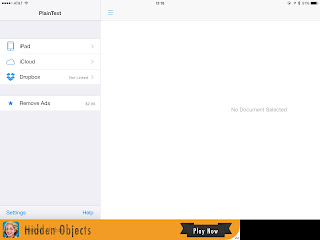 First, open Plain Text 2 and there will be an option along the left edge to link to Dropbox. Clicking on this will ask whether you want to link Plain Text 2 to the entire Dropbox hierarchy, or only to the App folder for Plain Text 2.
 In my example, I just went ahead and linked to the entire Dropbox folder, since I might want to edit already existing documents; if you've not linked Plain Text to Dropbox before, this is probably the better option, unless you will go back later and edit Scrivener's Sync to External Folder option to put your project's files under the Plain Text folder on Dropbox.

Whichever option you choose, tapping it will launch the Dropbox app, and ask if you want to allow Plain Text 2 to access Dropbox. Tapping on Allow will link the two, and then take you back to the Plain Text 2 app, where Plain Text will warn you that Dropbox sync cannot be done in the background, and to keep the app open while syncing occurs. Depending on how many files you have, and how much space, this can take a couple of minutes over WiFi.
Once it syncs, you should be able to tap on the Dropbox icon on the left side, and see your files & folders. Tap your way through the file hierarchy until you find the Draft folder you set up in the External Folder Sync in Scrivener. Select the file you want to edit, and go to town!

If you want to create a new file in Plain Text 2 and have it ready to sync, make sure you are in the Draft folder, and tap the "new file" button (the icon at the bottom of the left sidebar, a square with a pencil through the upper-right corner). Then, type away!

In either case, whether you are editing existing files or are creating new ones, changes to the Scrivener project must be synced back. Once you have the project open in Scrivener, click "File->Sync->With External Folder Now" to bring the changes back up (and, also, push down any you may have made while in Scrivener).

Any new or modified files will appear in the Binder in Scrivener, under the "Updated Documents" collection. To reveal the collections, if they are not already visible, click on the Collections button at the top left of the Scrivener toolbar
 (And, to reveal the Binder, if it is hidden, click the Binder button on the far left). Now, you'll have a Scrivener project with all your edited, and new, documents from Plain Text 2 on your iPad!
One final caveat, before we part ways today: Plain Text 2 (like many other editors) will automatically save the file using the first line of the file as its title. This also means that, like many other editors, you shouldn't edit the first line of the file once it's been synced to Scrivener. Until you sync it, you can edit it ad hoc, no big deal. But once it's been synced, it's best to leave it alone. My suggestion is to immediately give the file a first line title that will be useful in Scrivener (Scrivener will later add its own internal information to the title anyway), and then never worry about it again.
If anyone has a question, feel free to post a comment below, or shoot me a note on my Facebook Page (BacilDonovanWarren), or on Twitter (@BacilDonovan).
If you don't have—or don't like—Simplenote, you do have other options available to you. As we discussed in an earlier post, you can tell Scrivener to sync with an external folder, and that folder can reside basically anywhere on your Mac. If you put your external folder in your Dropbox folder (or a sub-folder of it), you can access it anywhere you can access Dropbox; editing them can then be done in any RTF or plain text editor that can open files from Dropbox.
Caveat: if you plan to use a plain text editor, such as iaWriter (US $2.99), you must set up the External Folder Sync to use plain text, rather than RTF files. Also, if you have an outline already created, or have some idea what your structure will look like, I have found it easiest to make sure the files I think I am going to want already exist, even if they are empty, before I even set up the External Folder for syncing. You may feel differently, and that's okay!
Some of these options include the lightweight PlainText 2 (free, does offer in-app purchases), Byword (US $5.99), and others. In the interest of brevity, I'm only going to cover Plain Text 2 today, since getting other apps to work is very similar.
The gist of getting any particular app to connect to Dropbox, if it offers that option, is to tell the app you want to use Dropbox—usually in the settings for the app itself—and then adding Dropbox as an option there. The app will usually launch the Dropbox app for you, which will then ask you if you want to allow that app to connect. Giving it permission then returns you to the original app, where you may have to wait for the app to sync with the Dropbox files. Also, while many apps offer Dropbox sync by default, others may offer it only as an in-app purchase upgrade.
For PlainText 2 users:
Plain Text 2 offers Dropbox sync as well, and linking it is very easy.
 First, open Plain Text 2 and there will be an option along the left edge to link to Dropbox. Clicking on this will ask whether you want to link Plain Text 2 to the entire Dropbox hierarchy, or only to the App folder for Plain Text 2.

Whichever option you choose, tapping it will launch the Dropbox app, and ask if you want to allow Plain Text 2 to access Dropbox. Tapping on Allow will link the two, and then take you back to the Plain Text 2 app, where Plain Text will warn you that Dropbox sync cannot be done in the background, and to keep the app open while syncing occurs. Depending on how many files you have, and how much space, this can take a couple of minutes over WiFi.
Once it syncs, you should be able to tap on the Dropbox icon on the left side, and see your files & folders. Tap your way through the file hierarchy until you find the Draft folder you set up in the External Folder Sync in Scrivener. Select the file you want to edit, and go to town!

If you want to create a new file in Plain Text 2 and have it ready to sync, make sure you are in the Draft folder, and tap the "new file" button (the icon at the bottom of the left sidebar, a square with a pencil through the upper-right corner). Then, type away!

In either case, whether you are editing existing files or are creating new ones, changes to the Scrivener project must be synced back. Once you have the project open in Scrivener, click "File->Sync->With External Folder Now" to bring the changes back up (and, also, push down any you may have made while in Scrivener).

Any new or modified files will appear in the Binder in Scrivener, under the "Updated Documents" collection. To reveal the collections, if they are not already visible, click on the Collections button at the top left of the Scrivener toolbar

One final caveat, before we part ways today: Plain Text 2 (like many other editors) will automatically save the file using the first line of the file as its title. This also means that, like many other editors, you shouldn't edit the first line of the file once it's been synced to Scrivener. Until you sync it, you can edit it ad hoc, no big deal. But once it's been synced, it's best to leave it alone. My suggestion is to immediately give the file a first line title that will be useful in Scrivener (Scrivener will later add its own internal information to the title anyway), and then never worry about it again.
If anyone has a question, feel free to post a comment below, or shoot me a note on my Facebook Page (BacilDonovanWarren), or on Twitter (@BacilDonovan).
Monday, August 24, 2015
CloudAge writing with Scrivener and Simplenote
Yes, it's been a while since our last installment in this series, Scrivening in the CloudAge (with Scrivener), so let's not delay any longer with idle chit-chat!
… Except to say that Scrivener seems to be nearing readiness on the iPad, having recently gone into a private Beta test phase. I am going to attempt to become a public beta tester for it, when they make that available, but I will definitely test & review it for you when it is released if I am not able to become a beta tester. And that, of course, the reason for my delay is that I switched from my iPad as my only portable option, to a MacBook Air, and have been unintentionally neglecting the iPad as my writing tool because of that. I am here to redress that imbalance!
So if you're a current Scrivener user, and already have or are planning to install Simplenote (free) on your iPad, here's how you connect Simplenote to your existing Scrivener projects.
First, launch and login to Simplenote on the iPad (create a free user account, if you have not yet done so).
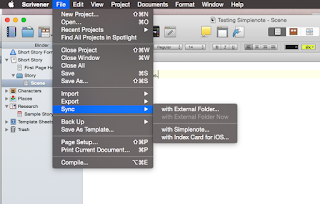 Next, on your computer, open the project you wish to be able to use in Simplenote, within Scrivener on your computer. Next, go into the "File" menu, and select "Sync->with Simplenote …", as shown:
 When you select the "with Simplenote …" option, a sheet will appear, permitting you to login to the Simplenote servers. Use the same username and password as you used on the iPad.
Please note that the Project keyword field is mandatory, as this is the method that Scrivener uses to sync with Simplenote.
 Next, you're greeted with a sheet to select which documents should sync between Scrivener and Simplenote for this project. By default, this is set to "Select documents to sync", which is the recommended setting. The rationale behind this setting is that you should sync only the documents you will work on remotely, saving space and bandwidth. For example, you might wish to work on text documents within the "Draft" folder (the generic name for the project's main content, whether a short story or a manuscript, etc.), as well as Characters, but not the Places or Setting items.
The settings for "Take snapshots of affected documents before updating", "Insert blank lines between paragraphs", and "Delete from Simplenote any project documents not selected for syncing" are enabled by default. Deselecting "Take snapshots" will stop Scrivener from making snapshot backups of the selected files before uploading, and before syncing back, and is not recommended (that is, leave it selected, that way it will make snapshots of the local file before any changes are uploaded or synced). Inserting blank lines between paragraphs will insert a blank link after any paragraph in the Scrivener document. Delete from Simplenote will remove from the Simplenote service any documents which are present in Simplenote—and are part of the current project—but which are not selected to be synced. As an example, lets say you work on one chapter at a time. You create a new folder for the chapter, and sync that folder and all of its subfiles to Simplenote. Then, after several weeks of editing, etc., you regard the chapter as finished, and sync all your changes back into Scrivener. Next, you work on chapter 2, create the Chapter 2 folder and some subfiles, then mark them for sync to Simplenote. If you then un-check the Chapter 1 folder & files, and leave "Delete from Simplenote any project documents not selected for syncing", all of the Chapter 1 files & folder(s) will be deleted from Simplenote (though, since you've already synced up from before, you will not be losing information). This can be a handy way to stay focused only on the highest-priority items, by removing any files that have already been finished and leaving behind only the ones that are still being edited.
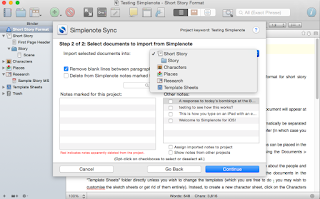 Once you've selected the items within Scrivener to sync, click "Continue" and you'll be presented with a sheet asking about importing from Simplenote. First, it will prompt you for the location in the current project where you'd like Simplenote documents to be placed. This will, of course, depend on what you're doing; if you are using the iPad as a research tool—say, by taking your iPad with you to the library or to wherever you do your research—then you might choose to have Scrivener add Simplenote files to the Research section of the project. If, instead, you are working on only one chapter of your novel on the iPad (maybe you'll be on a business trip and want to work on the new chapter while you're away), you can select that folder instead. There will also be a section to the left where any notes already marked for this project will appear (as you can see, there aren't any for now), and a section to the right where other notes from Simplenote will appear; you can elect to or not to sync any or all of these items.
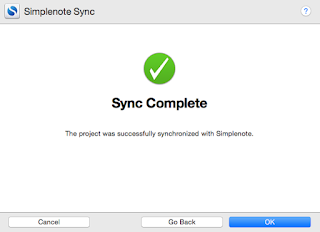 Once you've selected where to sync these files, and which ones to sync, click Continue and it will sync the files you've selected up to Simplenote, and any you've told it to bring down from Simplenote. It should then give you a "Sync Complete" message like the one on the right.
 Next, open Simplenote on the iPad (or iPhone, if you prefer), and you should see a list of notes in the main viewing area, as shown. Here is a brand-new Simplenote installation, with no previously existing files (the only note listed, "Getting the most out of Simplenote", is automatically created when Simplenote creates your login).
 Once the files in your new Scrivener project have been synced, you will see those files appear as well. You can see here, the titles of these notes contain not just the filename from the Scrivener file ("Scene" and "Story"), but also the left & right parentheses ("(" & ")"), left & right straight brackets ("[" and "]"), as well as the Project Keyword ("Testing Simplenote") and a number. In Simplenote, the first line of any note becomes the note's title, and in Scrivener the title is used to sync the files between Simplenote (the "remote"), and the Scrivener project (the "local"). When in Simplenote, remember do not edit the first line of any notes you sync with Scrivener, or those changes may be lost, overwritten, or otherwise mangled.
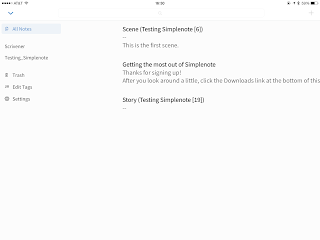 On the right, you can also see what the Simplenote interface looks like if you have the "notes" pane expanded (click the < at the top left of the screen). This allows you to pick and choose between seeing "All Notes" (that is, everything in your Simplenote account), or only notes with particular "Tags" (such as "Scrivener", which is automatically tagged to any Scrivener-synced document, or "Testing_Simplenote", which is the tag automatically created from the Project Keyword when it was created in the Scrivener project).
When you have been out and about on your iPad (or iPhone), and you are back to your computer ready to re-sync the changes you've made on your project while working on the iPad, you basically do the same steps: Select "File->Sync->with Simplenote …", and make sure that any files from Scrivener you wish to keep synced with the Simplenote project are selected; then, click "Continue" to select any new files that you wish to sync, which you may have created in Simplenote but are not yet in the Scrivener project, and click "Continue" again. This will sync any changed documents (creating a snapshot, first, if that option is selected), then push any new Scrivener documents to Simplenote, pull any new Simplenote notes to Scrivener, and then show you the "Sync Completed" sheet.
Now, you have an updated version of all documents on both Scrivener on your computer, and the Simplenote app on your device!
Please, feel free to post any questions below. Both Scrivener (links to support page) and Simplenote (links to contact page) offer support for their products.
… Except to say that Scrivener seems to be nearing readiness on the iPad, having recently gone into a private Beta test phase. I am going to attempt to become a public beta tester for it, when they make that available, but I will definitely test & review it for you when it is released if I am not able to become a beta tester. And that, of course, the reason for my delay is that I switched from my iPad as my only portable option, to a MacBook Air, and have been unintentionally neglecting the iPad as my writing tool because of that. I am here to redress that imbalance!
So if you're a current Scrivener user, and already have or are planning to install Simplenote (free) on your iPad, here's how you connect Simplenote to your existing Scrivener projects.
First, launch and login to Simplenote on the iPad (create a free user account, if you have not yet done so).
 Next, on your computer, open the project you wish to be able to use in Simplenote, within Scrivener on your computer. Next, go into the "File" menu, and select "Sync->with Simplenote …", as shown:
Please note that the Project keyword field is mandatory, as this is the method that Scrivener uses to sync with Simplenote.

The settings for "Take snapshots of affected documents before updating", "Insert blank lines between paragraphs", and "Delete from Simplenote any project documents not selected for syncing" are enabled by default. Deselecting "Take snapshots" will stop Scrivener from making snapshot backups of the selected files before uploading, and before syncing back, and is not recommended (that is, leave it selected, that way it will make snapshots of the local file before any changes are uploaded or synced). Inserting blank lines between paragraphs will insert a blank link after any paragraph in the Scrivener document. Delete from Simplenote will remove from the Simplenote service any documents which are present in Simplenote—and are part of the current project—but which are not selected to be synced. As an example, lets say you work on one chapter at a time. You create a new folder for the chapter, and sync that folder and all of its subfiles to Simplenote. Then, after several weeks of editing, etc., you regard the chapter as finished, and sync all your changes back into Scrivener. Next, you work on chapter 2, create the Chapter 2 folder and some subfiles, then mark them for sync to Simplenote. If you then un-check the Chapter 1 folder & files, and leave "Delete from Simplenote any project documents not selected for syncing", all of the Chapter 1 files & folder(s) will be deleted from Simplenote (though, since you've already synced up from before, you will not be losing information). This can be a handy way to stay focused only on the highest-priority items, by removing any files that have already been finished and leaving behind only the ones that are still being edited.
 Once you've selected the items within Scrivener to sync, click "Continue" and you'll be presented with a sheet asking about importing from Simplenote. First, it will prompt you for the location in the current project where you'd like Simplenote documents to be placed. This will, of course, depend on what you're doing; if you are using the iPad as a research tool—say, by taking your iPad with you to the library or to wherever you do your research—then you might choose to have Scrivener add Simplenote files to the Research section of the project. If, instead, you are working on only one chapter of your novel on the iPad (maybe you'll be on a business trip and want to work on the new chapter while you're away), you can select that folder instead. There will also be a section to the left where any notes already marked for this project will appear (as you can see, there aren't any for now), and a section to the right where other notes from Simplenote will appear; you can elect to or not to sync any or all of these items.
 Once you've selected where to sync these files, and which ones to sync, click Continue and it will sync the files you've selected up to Simplenote, and any you've told it to bring down from Simplenote. It should then give you a "Sync Complete" message like the one on the right.

 On the right, you can also see what the Simplenote interface looks like if you have the "notes" pane expanded (click the < at the top left of the screen). This allows you to pick and choose between seeing "All Notes" (that is, everything in your Simplenote account), or only notes with particular "Tags" (such as "Scrivener", which is automatically tagged to any Scrivener-synced document, or "Testing_Simplenote", which is the tag automatically created from the Project Keyword when it was created in the Scrivener project).
When you have been out and about on your iPad (or iPhone), and you are back to your computer ready to re-sync the changes you've made on your project while working on the iPad, you basically do the same steps: Select "File->Sync->with Simplenote …", and make sure that any files from Scrivener you wish to keep synced with the Simplenote project are selected; then, click "Continue" to select any new files that you wish to sync, which you may have created in Simplenote but are not yet in the Scrivener project, and click "Continue" again. This will sync any changed documents (creating a snapshot, first, if that option is selected), then push any new Scrivener documents to Simplenote, pull any new Simplenote notes to Scrivener, and then show you the "Sync Completed" sheet.
Now, you have an updated version of all documents on both Scrivener on your computer, and the Simplenote app on your device!
Please, feel free to post any questions below. Both Scrivener (links to support page) and Simplenote (links to contact page) offer support for their products.
Monday, August 10, 2015
I was your medic
I was your medic
—Bacil Donovan Warren
You might remember me, although I don't remember you,
It's nothing personal, you see—I very seldom do.
I treat a lot of people, and I see more every day;
Now, if the call was really bad, the memory might stay.
Especially if it involved a child—maybe yours?—
Whose face was blue, head slumping down, as we came through the doors.
You held her precious body out for us to lend a hand
"You must save her!" you screamed at us, as we calmly began.
Or was it from this call we ran, a couple months ago;
A flare up at a barbecue; a man who did not know
The gas had already been on, and tried to light the flame,
What I recall most about it: him, screaming out in pain.
As many of my colleagues know, I joke about our work,
None of it is intended to be rude; I'm not a jerk.
It's simply how many of us deal with the deathly ill,
The ugly truth about it, is that many haunt me still.
The agony in faces wracked with fear about the fate
Of a father, or a friend, who seems at Heaven's gate;
A tearful wail as medics fail to work their magic touch—
Sometimes, when I remember them, it really is too much.
And so I work to bury it, so deep inside my soul.
I let it out in little bursts as jokes—that is my role.
But many nights I lie in bed, because I cannot sleep;
The memories of those I've lost—into my brain they creep.
They torture me with thoughts about the things I did, or not;
Was there more I could have done? Just give me another shot!
The second, or the third or fourth, a chance to do again
And step back into history—remembering only then
That nothing that I do or say has made them come alive
I couldn't make it better then, and they did not survive.
So as I lay with the demon Doubt twisting in my head,
I circle into bitter thoughts, just laying in my bed.
One month turns to five or six, Doubt eating me from within
My coping mechanisms can no longer calm the din.
The demon leads me to the gun, I keep for safety's sake;
Ironic how I use it now, the cycle for to break.
I didn't think that anyone would get just how I feel;
I thought I would get laughed about—the medic who can't deal!
It tears my soul apart now when I dwell upon this pain,
I just wish I could have reached out and didn't have to feign
Being well: a happy face, be that medic you all know
Has it all together!—I tell you now, it's all a show.
If only I had taken time, to talk about these fears
I might not now be looking down, your faces wet with tears.
My memorial is over, my friends have said goodbye,
Some of them are back to work, while others will sit and cry.
I was your medic, at one time, but since I kept it in,
I took my life when demon Doubt no longer stayed within.
I beg you now, my medic friends, don't keep it buried down
Hiding under a false face; the station's duty clown.
Talk to someone who can help you deal with this Doubt.
I do not want another soul to accompany me out.
If you are an EMS provider, and you are feeling haunted & brought to the brink of suicide by those demons of Doubt, or the memories of the ones you couldn't save, you can get help: the Code Green Campaign has a lot of resources you can use to help with those. It sucks when we lose patients, but there is hope. You are not alone.

—Bacil Donovan Warren
You might remember me, although I don't remember you,
It's nothing personal, you see—I very seldom do.
I treat a lot of people, and I see more every day;
Now, if the call was really bad, the memory might stay.
Especially if it involved a child—maybe yours?—
Whose face was blue, head slumping down, as we came through the doors.
You held her precious body out for us to lend a hand
"You must save her!" you screamed at us, as we calmly began.
Or was it from this call we ran, a couple months ago;
A flare up at a barbecue; a man who did not know
The gas had already been on, and tried to light the flame,
What I recall most about it: him, screaming out in pain.
As many of my colleagues know, I joke about our work,
None of it is intended to be rude; I'm not a jerk.
It's simply how many of us deal with the deathly ill,
The ugly truth about it, is that many haunt me still.
The agony in faces wracked with fear about the fate
Of a father, or a friend, who seems at Heaven's gate;
A tearful wail as medics fail to work their magic touch—
Sometimes, when I remember them, it really is too much.
And so I work to bury it, so deep inside my soul.
I let it out in little bursts as jokes—that is my role.
But many nights I lie in bed, because I cannot sleep;
The memories of those I've lost—into my brain they creep.
They torture me with thoughts about the things I did, or not;
Was there more I could have done? Just give me another shot!
The second, or the third or fourth, a chance to do again
And step back into history—remembering only then
That nothing that I do or say has made them come alive
I couldn't make it better then, and they did not survive.
So as I lay with the demon Doubt twisting in my head,
I circle into bitter thoughts, just laying in my bed.
One month turns to five or six, Doubt eating me from within
My coping mechanisms can no longer calm the din.
The demon leads me to the gun, I keep for safety's sake;
Ironic how I use it now, the cycle for to break.
I didn't think that anyone would get just how I feel;
I thought I would get laughed about—the medic who can't deal!
It tears my soul apart now when I dwell upon this pain,
I just wish I could have reached out and didn't have to feign
Being well: a happy face, be that medic you all know
Has it all together!—I tell you now, it's all a show.
If only I had taken time, to talk about these fears
I might not now be looking down, your faces wet with tears.
My memorial is over, my friends have said goodbye,
Some of them are back to work, while others will sit and cry.
I was your medic, at one time, but since I kept it in,
I took my life when demon Doubt no longer stayed within.
I beg you now, my medic friends, don't keep it buried down
Hiding under a false face; the station's duty clown.
Talk to someone who can help you deal with this Doubt.
I do not want another soul to accompany me out.
If you are an EMS provider, and you are feeling haunted & brought to the brink of suicide by those demons of Doubt, or the memories of the ones you couldn't save, you can get help: the Code Green Campaign has a lot of resources you can use to help with those. It sucks when we lose patients, but there is hope. You are not alone.

Tuesday, February 17, 2015
Sci-Fi short story teaser
“Alright, good. Because we can’t take this to the Space Command guys without verifying it.” Steve turned his attention back to the computer screen. “Really, MARVIN? A robot probe with a small wormhole generator? I suppose those magnetic bottle arrays are …” his voice trailed again as the implications swam through his brain. “… Sonofabitch Lance. Write that script and verify. I think MARVIN’s really onto something.”
“Workin’ on it now; what do you suppose is up?”
“You remember all those magnetic bottles we found, the ones that were almost all intact and still charged?”
“Yeah, so?”
“They’re photon holders. It’s a quantum signaling system, tied to the generator that MARVIN detected. It all makes sense now.”
The stunned silence emanating from the tall, dark-complected Lance seemed almost to vibrate, but his face drained of energy. “So, it’s autonomous, and has a small wormhole generator that can be remotely triggered. You’re saying that it can be operated remotely, instantly, by whomever created it, and it’s deep under the Earth, right now?”
“Well, yeah, I think I am. At least, I think I think.” Steve sighed, stared through the floor, and contemplated his options. “Run your script, dude, and let’s see what comes up.”
Subscribe to:
Comments (Atom)